
How does Courier Connexion work
Courier Connexion is a courier aggregator connected to various Courier service providers via our website. This allows us in real time to interact with these companies - our partners - to source quotations, submit shipments and control / report on shipments in progress. This gives you the ability to select the optimal price and service for your need.
Once you have successfully submitted and paid for the shipment via our application, the selected Courier partner is triggered to collect the parcel from your premises.
So, to begin – go to www.courierconnexion.com. This allows you to obtain a quick quote.
Quick Quotation
The quick quotation function is available when you are on our website even though you are not logged into the system.
Click on ‘GET A QUOTE AND SEND’ in the menu below.
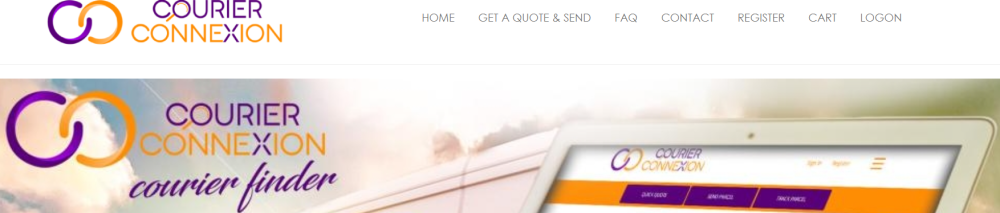
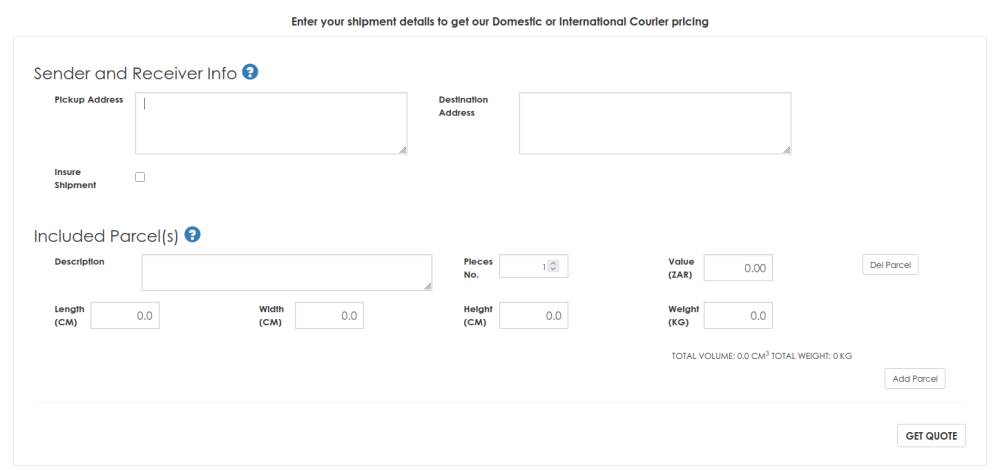
You can get a quick quotation on both domestic and international (international exports only) shipments. The following data needs to be entered:
Pickup Address
Destination Address
Package Details which include
Description
Dimensions
Weight
Declared value
The ‘Quick Quote’ form:
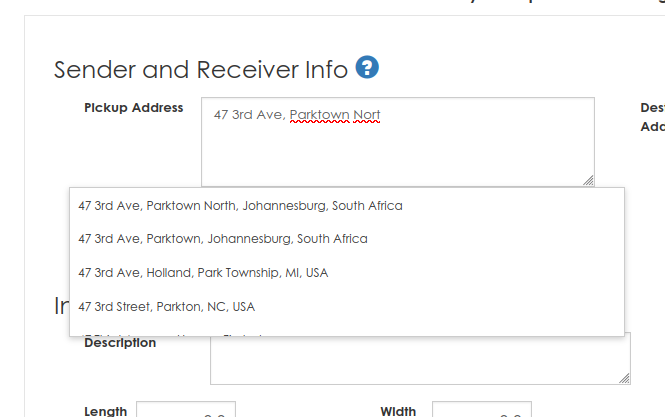
When entering the addresses, a predictive text prompt may pop up to assist you in auto completing the address – such as the example shown below:
Once you have completed the form and clicked on the ‘GET QUOTE’ button, the system will communicate with our partners to source and display their available services and charges.
These will be displayed in the form as indicated in the image below. See Price in the right-hand column:
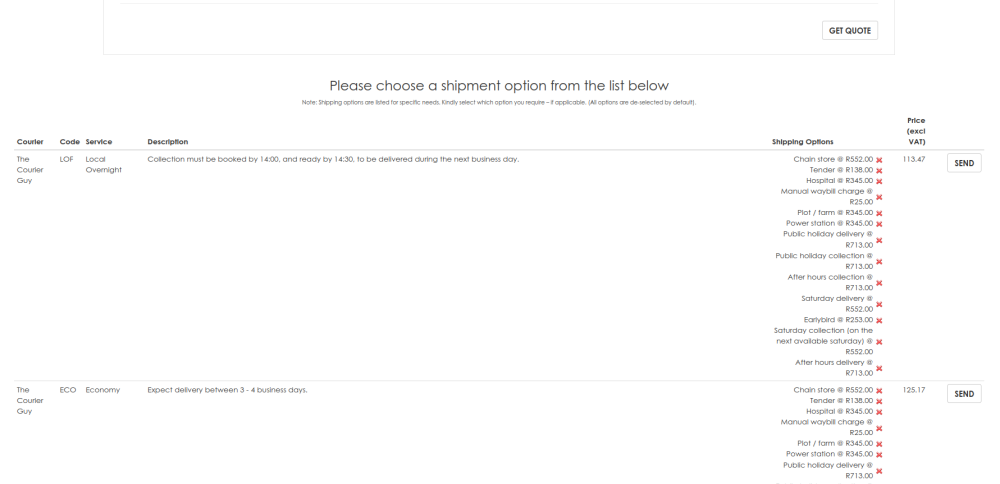
Should any of the various ‘Shipping Options’ listed above, apply to you, for example ‘Saturday Delivery’, click on that option to include the charge for that option. The ‘red cross’ will change to a ‘green tick’ and the displayed service charges will be updated to reflect the additional charge. Should you have no special ‘Shipping Option’ needs, then please proceed.
To proceed with the service you have chosen, click on the ‘SEND’ button for that service. At this point, the system will ask you to ‘log on’ or to ‘register’ if you are not an existing user.
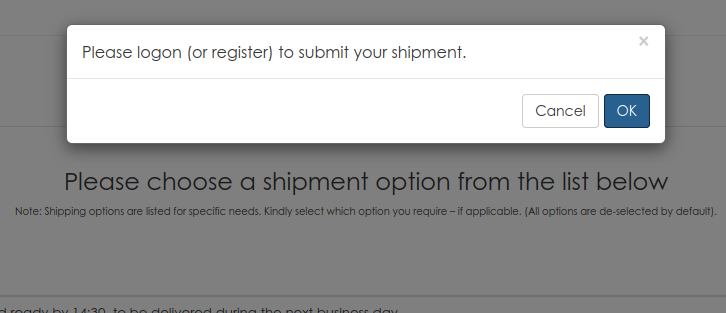
Once you have logged on (or registered), a form will open up with the details you captured in the requested quotation.
New Shipments
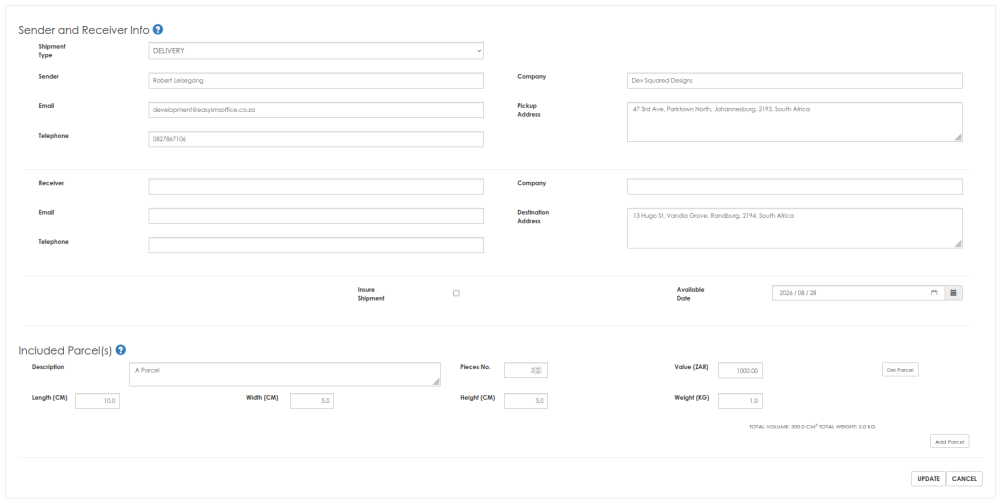
Please note the following:
The Sender Details will be auto inserted - based on your entered profile when registering.
You can double click on the address entry box to display a form to assist in completing the address.
The system allows you to enter multiple Parcels. Each Parcel must contain one or more identical items (based on dimensions and weight). This is done to speed up entry.
At this point, complete the details of the shipment and click on the ‘UPDATE’ button. The system will ask you to confirm the shipment. Once you have done so, the system will confirm the quotation with our Courier partners and display the shipment details and updated quotation, as below.
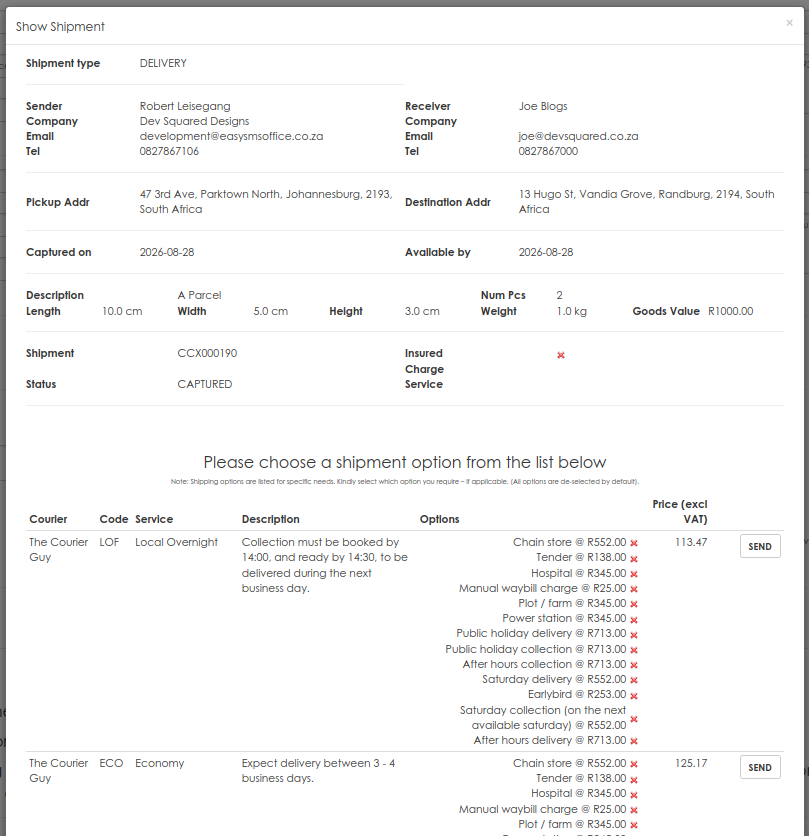
To submit your shipment to the Courier Service, click on the ‘SEND’ button. The following form will be displayed. The form is used to display the final charge for the shipment as well as to capture (or display on subsequent shipments) your billing details.
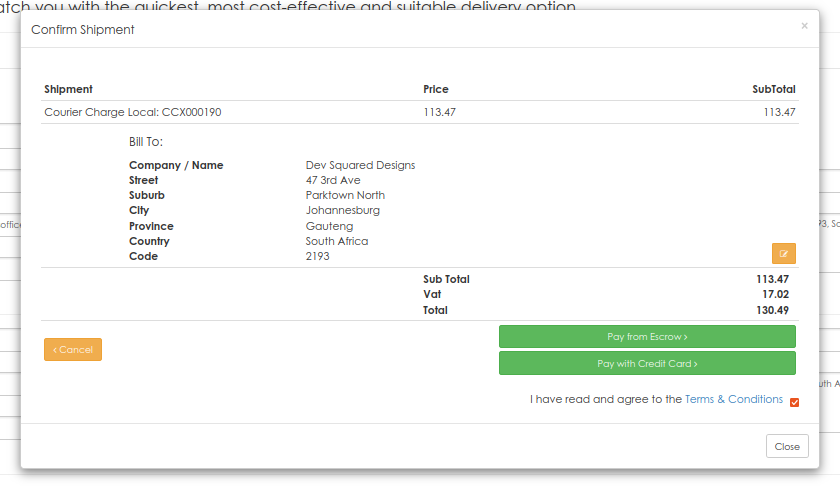
To proceed with the shipment, please review our Terms & Conditions and accept them by enabling the tick box.
Two payment options can be displayed, namely:
Pay by Credit Card. This option will redirect you to PastFast (our secure payment gateway).
Pay from eWallet. If you have pre-purchased an ‘eWallet’ on our system (see ‘SHOP’ menu item), and you have available credits for the shipment, the charge will be deducted off your eWallet balance.
Please note that if you cancel a shipment on our system (before collection and confirmed by the Courier service), then the charge will be refunded to you by crediting you with an eWallet to the value of the submitted shipment.
Once you have completed the payment, the system will automatically submit the shipment to the Courier service provider and provide the options for you to print the relevant Waybill and/or Labels – which you need to do – to hand to the driver on collection.
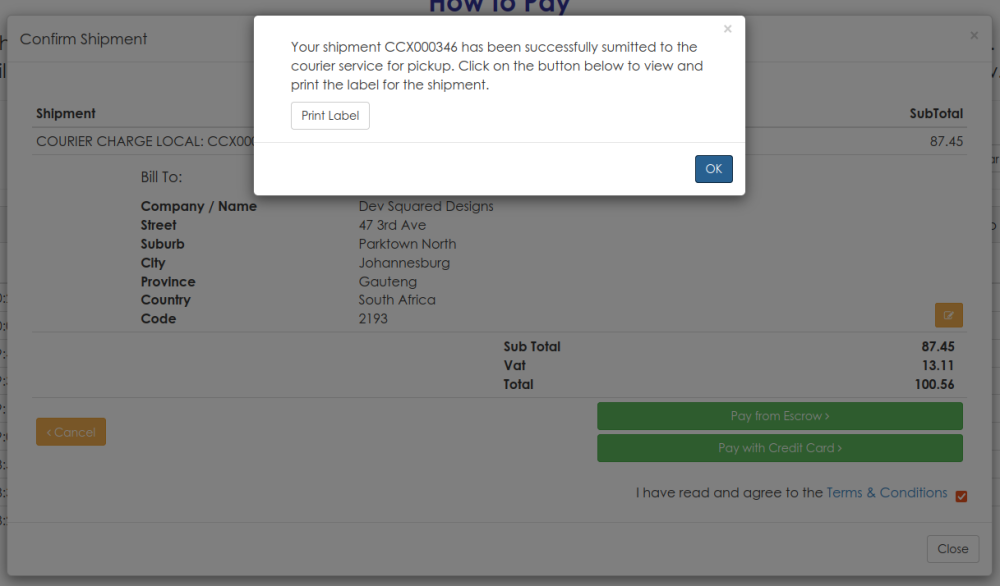
Some Couriers (e.g. FedEx) may require you to confirm collection. In this case, a ‘Schedule Pickup’ button will also be displayed. Click on it to display and complete the form.
Once you have completed these steps, the Courier driver will be dispatched to collect the parcel being shipped.
Invoices
Should you wish to view or print a copy of your invoice - go to ‘MY ACCOUNTS’ at the top of screen and select ‘VIEW DOCUMENTS’ where you can view and select the shipment invoice you need. Once you have selected the shipment, click on the ‘Document No.’ and your selected invoice will appear. You can then select the option ‘Download Pdf’.
International Shipments (Outbound or Exports only)
For Import shipments kindly contact connect@courierconnexion.com.
For Export shipments, kindly proceed as follows:
When entering international shipments, you will be required to enter the Commodities being shipped as well as complete a Commercial Invoice before being able to generate a quote or submit the shipment to our Courier Service.
You will be guided through the process when an international shipment is detected
Please note the ‘Add Document’, ‘Add Commodity’, ‘Complete Commercial Invoice’ and ‘Get Quotation’ buttons.
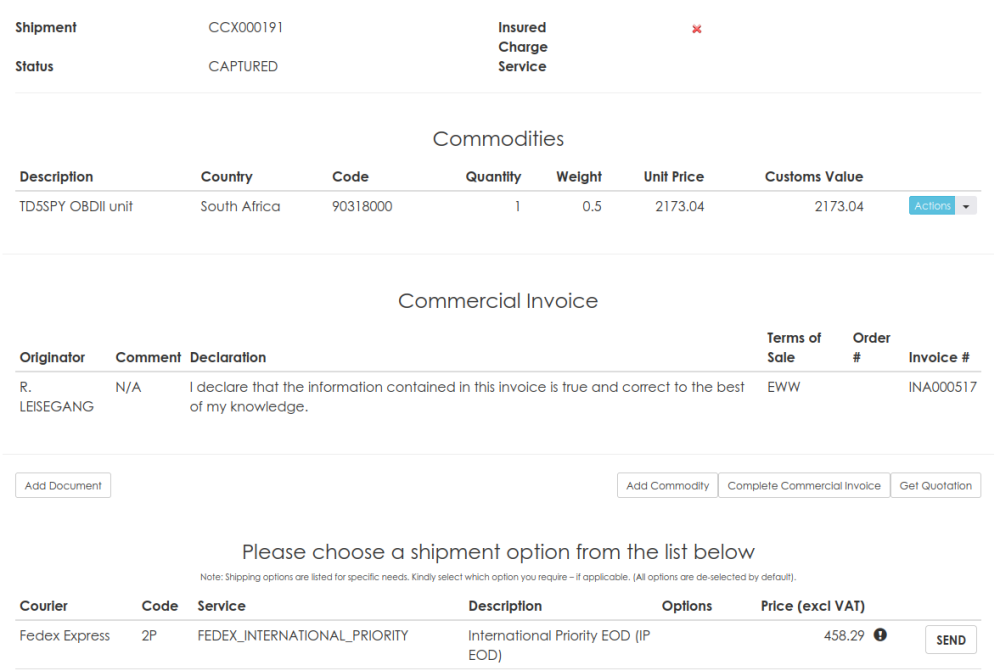
The form below is used for capturing commodities:
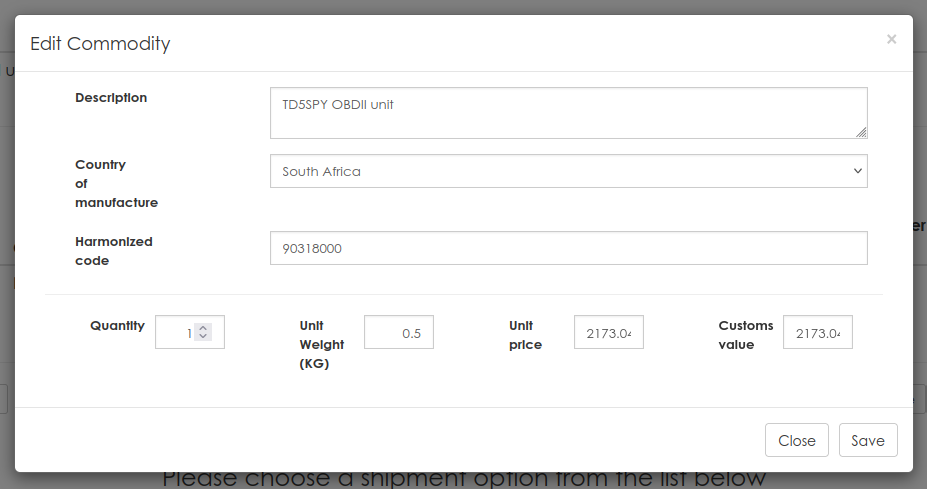
Capture all the commodities in the shipment. Each different commodity in the shipment must be entered separately. Make sure that the captured values and weights match the values and weights when you entered the shipment items.
Once your commodities are captured, use the form below to enter the Commercial Invoice details.
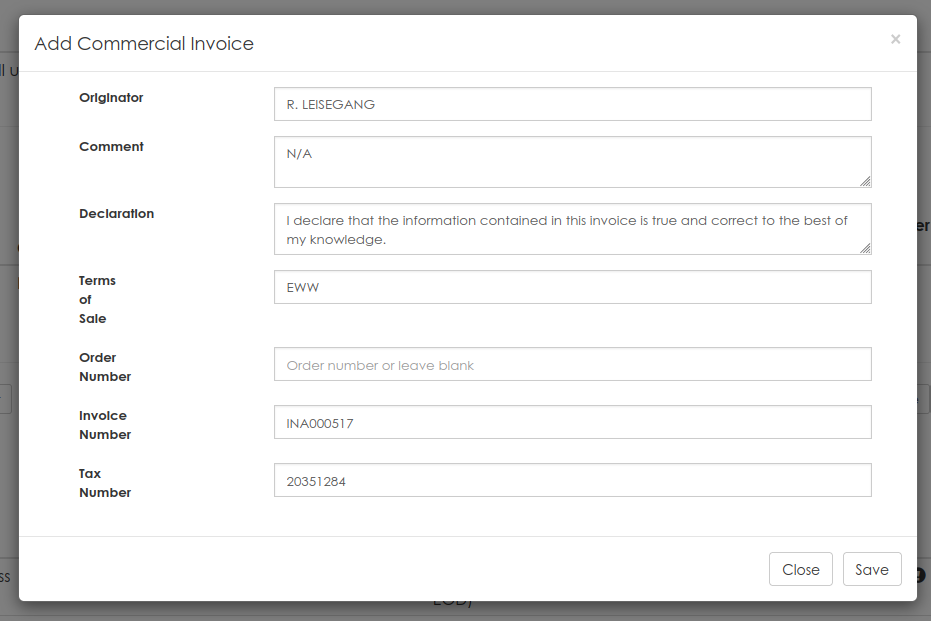
Should you wish to upload your own Commercial Invoice, or you need to attach other documents to the shipment, click on the ‘Add Document’ button. The following form will be displayed.
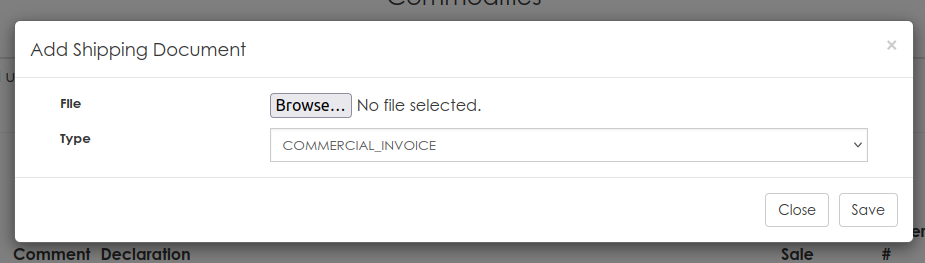
Click on ‘Browse’ and select the document you wish to upload. You can upload multiple documents. The following document options are available.
CERTIFICATE OF ORIGIN, COMMERCIAL INVOICE, ETD LABEL, PRO FORMA INVOICE, OTHER
Once you have completed these steps, click on the ‘Get Quote’ button to request a quotation for the shipment. Click on the ‘Send’ button next to your preferred service to submit the shipment to our Courier service.
Registered Users
Once you have logged onto the system, the following 2 main options are presented:
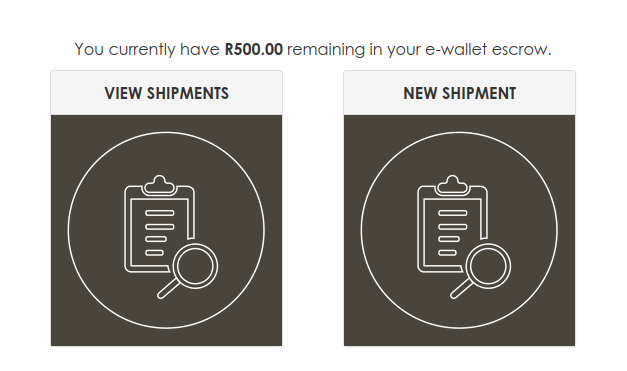
Please note that if you have funds available in an eWallet, it will be displayed above the 2 images, for your convenience
To send new shipments, click on the ‘NEW SHIPMENT’ image and proceed as described above.
To view, edit or complete shipments, click on the ‘VIEW SHIPMENT’ image. The following list will be displayed.
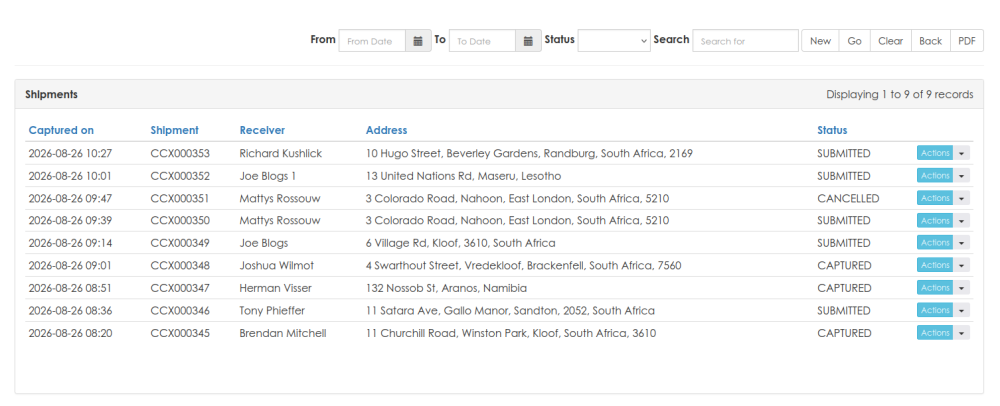
Please use the ‘Action’ button linked to each shipment to perform your required action. They could be one of the following:
Edit a shipment that has not yet been submitted to the Courier Service.
Show a shipment. This could be a shipment that has already been submitted, or one that is not yet submitted. In this case, the system will display the current quotation from the various services and allow you to submit the shipment.
Cancel a shipment that has been submitted but not collected.
Download Waybills or Labels.
View and print Waybills and/or Labels
System Menu
The system Menu is displayed at the top right of the website page.
The following general features are available:
SHOP. This displays a form where you can purchase eWallet’s. If you have purchased an eWallet, the funds on the wallet can be used to pay for submitted shipments.
MY PROFILE. Update your personal / user details.
MY ACCOUNT. View or edit your billing details. View your statements and invoices/credit notes. You can also complete payment on unpaid invoices here by clicking on the PayFast icon linked to the invoice.
CART. View / Checkout you cart (for eWallet purchases).

Should you have a new request or need personal support, kindly contact Joy:
Joy's email: connect@courierconnexion.com or whatsapp 071 570 5863